For small job-based service businesses

Run the whole job. Know what you made.

Keep estimates, job time, expenses, mileage, invoices and payments together—so you can review what each job brought in and cost.

An owner dashboard for the next decision. A shared job record for the whole crew on Team.

Stop rebuilding the job from memory.

Hours in notes. Costs on receipts. Invoices somewhere else. It's hard to feel confident about a job's numbers when the details are scattered. Doing the work shouldn't mean guessing at the numbers.

Owner dashboard

Open the app. Know what needs you.

Start with the work that needs attention, not a hunt through separate lists. See priorities, a profit-and-loss snapshot and quick actions in your owner view.

What needs attention

  • Invoice-ready work
  • Estimates to create or review
  • Unpaid invoices

Your profitability snapshot

  • Month-to-date P&L
  • Year-to-date P&L

Move the job forward

  • Start a timer
  • Add mileage
  • Add an expense
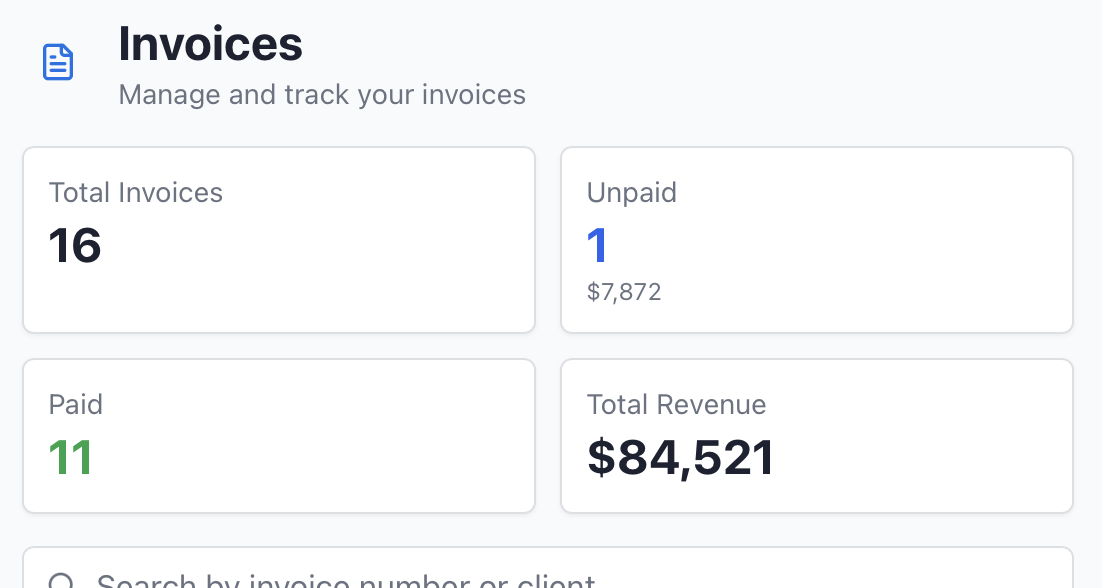
Example invoice summary showing total, unpaid and paid invoices and total revenue
Invoice totals from the app; example values shown. The dashboard also surfaces the priorities and quick actions listed above.

One job, from start to review.

We know scattered records are frustrating. JobClocked keeps the work and its numbers connected. The product screens below show how.

  1. Start the job

    Create a job or start from an approved estimate.

  2. Capture the work

    Keep time, expenses and mileage with the job.

  3. Review the numbers

    Check recorded costs, invoices and payments.

See the job come together.

01 / Estimate

Start with a clear plan.

Keep the client and the scope in one place before the work starts.

  • Create, edit and delete client records, with their estimates, projects, entries and invoices in view.
  • Build fixed-price, time-and-materials or recurring estimates.
  • Get approval by email or record an on-site or phone approval, then turn the estimate into a project.
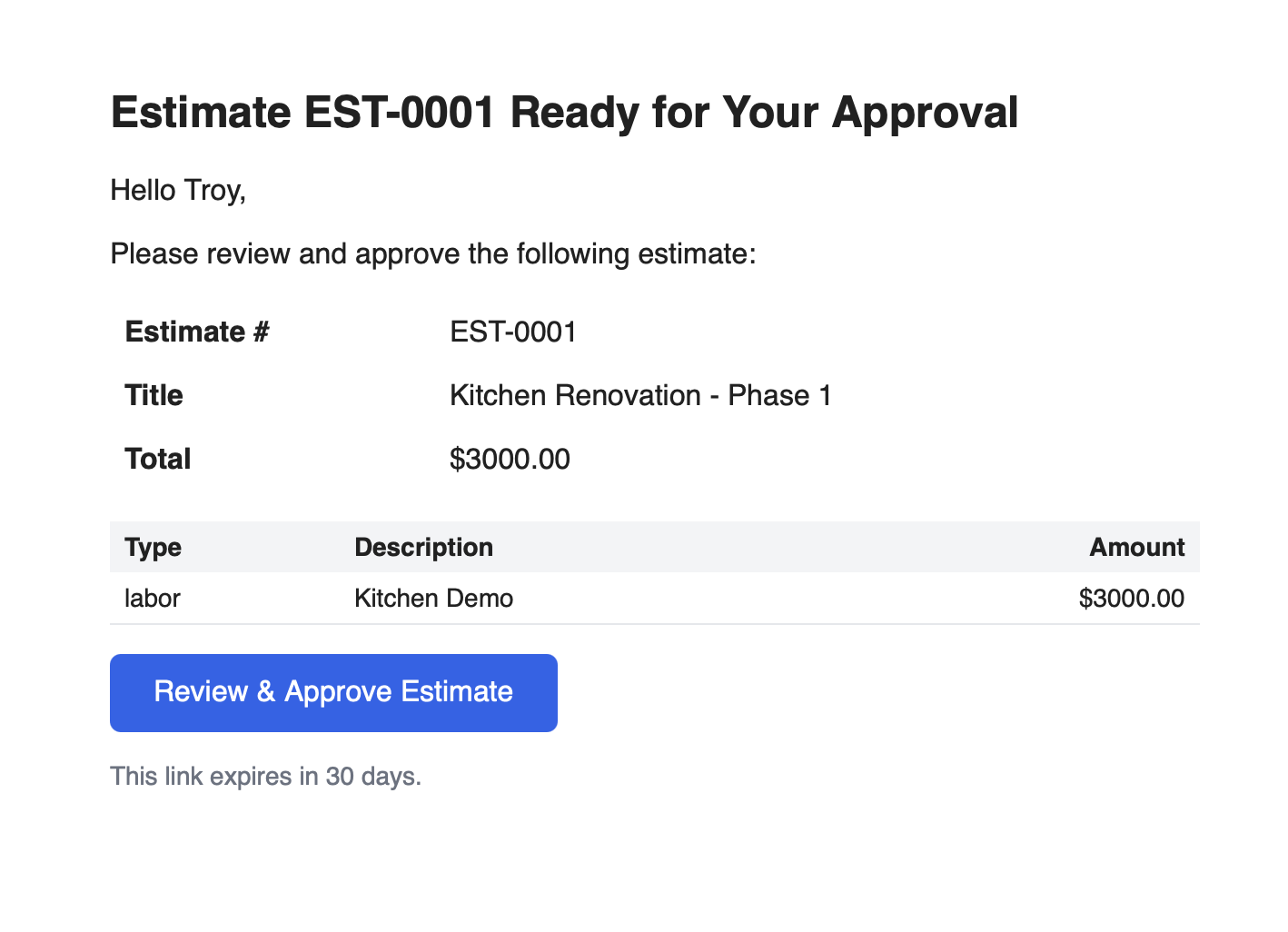
Example JobClocked email asking a client to review and approve an estimate
An example estimate approval email.

02 / Job

Keep the details with the job.

See what the job took while the work is still fresh.

  • Track your own time, mileage and expenses against the project.
  • On Team, assign crew members and keep their time, mileage and expenses on the same project.
  • When the project is complete, create a draft invoice from the work.
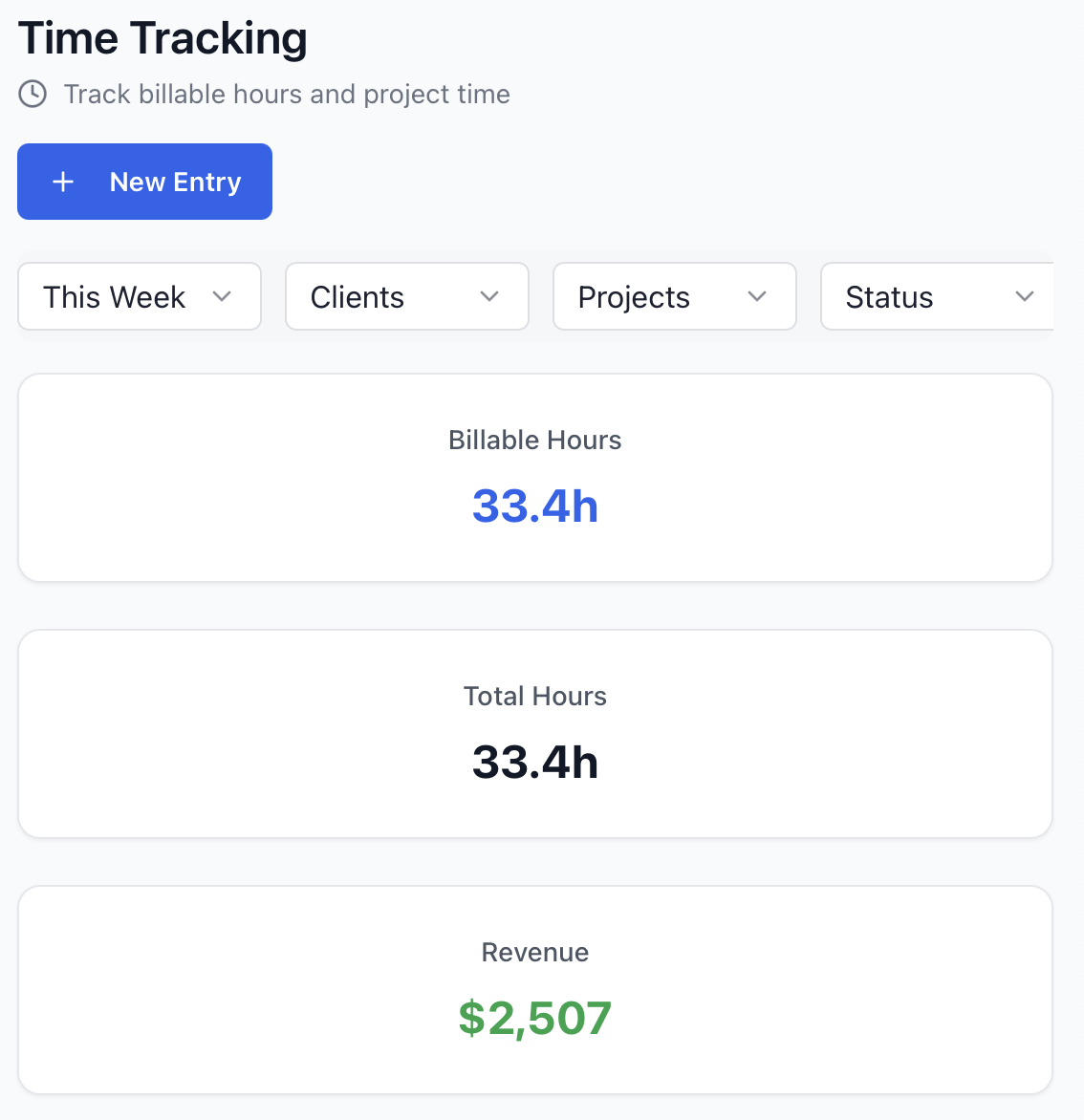
JobClocked time tracking screen with a new entry action and project filter
Time entries can be filtered by project.

03 / Billing

Know what needs billing.

Turn the work into a bill and keep track of what has been paid.

  • Email invoices to clients with the built-in templates and check paid or unpaid status.
  • Accept online card or ACH payments through Stripe.
  • Share payment links for other methods such as Venmo or Zelle.
JobClocked invoices screen showing total invoices, unpaid invoices, paid invoices and revenue
The invoices view shows paid and unpaid totals.

Team plan

Run jobs with your crew, not around them.

Team brings people, assignments and labor costs into the same job record, so the owner can see who did the work and what it cost.

Put the right people on the job

Invite members, assign them to projects and manage Owner, admin and crew roles. Update a member's status or remove them when plans change.

Keep crew work in one place

Review team time, mileage and expenses by project. Crew members can log time from the project list or time page.

See the cost of the work

Set and edit labor rates, turn hours into labor costs and mark labor paid. Use the team labor and unpaid-labor reports to review recent entries.

Team adds labor-cost-based true profit per job. Compare plan details

04 / Review

Finish the job. See the numbers.

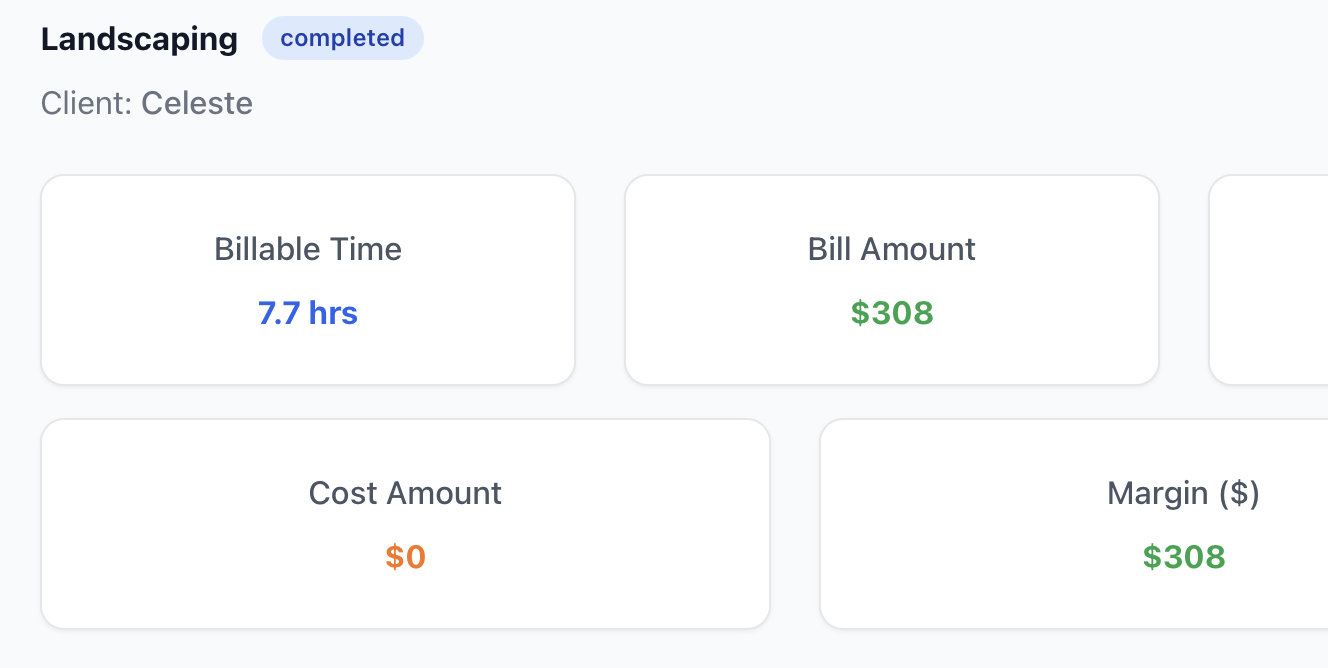
Open a completed job to review billable time, billed amounts, recorded costs and margin together. See what needs follow-up without rebuilding the story from memory.

  • Review a profitability snapshot and project summaries, including estimate versus actual and fixed-price versus time-and-materials work.
  • Break down time and expenses by category. On Team, review recent unpaid labor entries and true profit after labor costs.
Completed job view showing billable time, bill amount, cost amount and dollar margin
Completed job summary; example values shown.

Keep the business side connected.

The records and communication that support each job have a place too.

Documents and email

Connect Google Drive to store documents and Gmail to email clients. Connect your Google account during owner setup.

Account protection

Use multi-factor authentication and biometric protection for account access on supported devices.

Set up and get to work

Owners can add a client and choose to start with an estimate or project. Team members join from an invite and can begin logging work.

JobClocked supports iOS, Android and web access.

Intentionally focused

What JobClocked doesn't do.

Built for teams of 2–20 who want to run jobs without adding a heavy layer of admin. Here's what we leave out on purpose.

No CRM

Keep client records and job history, without a sales pipeline to manage.

No scheduling

Track work by project, without a calendar for booking appointments or crew shifts.

No dispatch

Assign team members to jobs, without a dispatch board or route-planning system.

The focus stays on the work, the bill and the numbers behind each job.

See the whole job, not scattered pieces.

From the approved estimate to the final invoice, keep the details in view when it's time to review the job.